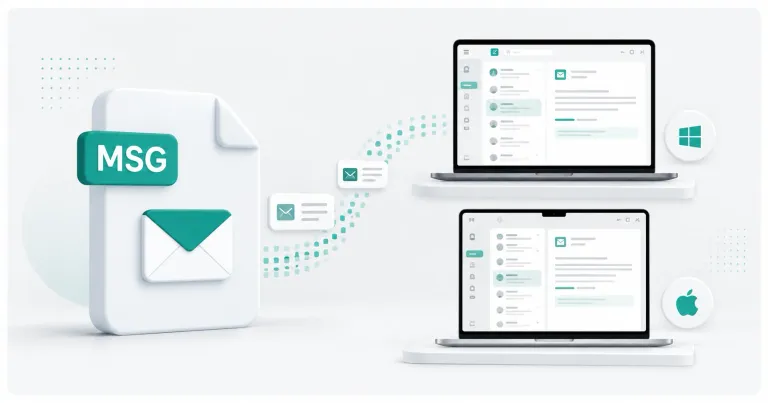
When you export your Gmail using Google Takeout, Google delivers your messages as a single .mbox file. It is a standard mailbox archive format, but most everyday applications do not open it directly.
If you do not have a compatible mail client, or you only need to read a few messages, you do not need to import the entire archive into a desktop email application.
Open the MBOX Viewer to read a supported Google Takeout .mbox file directly in your browser on Windows or Mac.
What is a Google Takeout MBOX file?
An .mbox file is a single file that stores multiple email messages concatenated together. Each message is separated by a line that begins with From (often called the "From line" or "envelope line"), followed by the full RFC 822 email content.
When you request a Gmail export through Google Takeout, Google packages your messages into one or more MBOX files. A typical Takeout MBOX can contain:
- Thousands or tens of thousands of messages
- Plain text and HTML message bodies
- Attachments
- Email headers and metadata
- Labels and folder structure (encoded in the message metadata)
MBOX is a plain-text format, which makes it durable and widely supported by archival tools, but it is not designed to be opened like a normal file in a text editor or a standard file viewer.
Why MBOX files are hard to open
Most desktop email clients do not let you simply double-click an .mbox file. Instead, they expect you to import the archive into a profile or account.
Common problems include:
- No default handler: Windows and macOS do not associate
.mboxwith any built-in application. - Import-only workflows: Thunderbird, Apple Mail, and Outlook require you to import the MBOX into a mailbox rather than open it directly.
- Very large files: A full Gmail export can be several gigabytes, which many editors and clients cannot load into memory.
- Concatenated messages: Opening an MBOX in a plain-text editor shows all messages merged together, which is unreadable for practical use.
- Attachment encoding: Attachments are stored as base64-encoded text inside the MBOX, so they are not directly accessible without a parser.
The result is a file you legitimately downloaded but cannot easily read.
Quick answer: what should you do?
Choose the method based on what you actually need.
| What you need to do | Better approach |
|---|---|
| Read a few specific messages | Use an MBOX viewer |
| Search across all messages | Use a viewer with local search |
| Check attachments | Use a viewer that extracts attachments |
| Migrate to a new mail client | Import the MBOX into Thunderbird or Apple Mail |
| Back up to another service | Import into a mail client and sync |
| Open on a Mac without installing software | Use a browser-based viewer |
| Open on Windows without installing software | Use a browser-based viewer |
For a quick read, FileViewerHub is designed to show supported MBOX file contents in your browser without requiring a desktop mail client.
Method 1: Open the MBOX file in FileViewerHub
This method is useful when you need to read messages, search, or inspect attachments rather than migrate the entire archive into a mail client.
Step 1: Open the MBOX Viewer
Go to the FileViewerHub MBOX Viewer.
The viewer supports .mbox files and processes supported file contents locally in the browser for standard viewing.
Step 2: Select the MBOX file
Drag the file into the upload area or choose it from your device.
Before parsing begins, FileViewerHub may show a large-file warning when the file exceeds the recommended size for the current device. Files above the viewer's hard browser-safety limit should be blocked rather than opened.
This limit is intentional. A Google Takeout MBOX can be several gigabytes, and the parsed in-memory representation can be much larger than the original file.
Step 3: Browse the message list
After the file opens, verify that:
- The message list shows subject, sender, and date.
- Messages are separated correctly (not merged).
- Dates and time zones appear as expected.
- The total message count looks reasonable.
- Folders or labels are shown where supported.
FileViewerHub can parse standard MBOX variants, including the format produced by Google Takeout, where supported.
Step 4: Search instead of scrolling
A full Gmail export can contain years of messages. Manually scrolling through thousands of records is inefficient.
Use search to narrow the data to what you actually need. For example, you might search for:
- A sender name or email address
- A subject keyword
- A date range
- A label or folder
- A transaction reference
- A conversation thread
Keeping the task focused is usually faster than trying to load the complete archive into a traditional mail client.
Step 5: Read a message and check attachments
Select a message from the list to read its contents. Verify that:
- The subject and sender are correct.
- The body renders as expected (plain text or HTML).
- Attachments are listed with names and sizes.
- Headers and metadata are shown where supported.
If you need an attachment, use the viewer to extract or download it directly, rather than importing the entire MBOX into a mail client.
Step 6: Export only what you need
If the viewer supports export for the current file, export the relevant messages to a more portable format such as EML.
You can then open the smaller result in:
- A standard mail client
- A text editor
- A document or presentation
- Another application for sharing
This avoids forcing a mail client to import an archive you only needed to read.
Method 2: Import the MBOX into Thunderbird
Thunderbird is a free, cross-platform mail client that can import MBOX files. This is useful when you want a full mail client experience on Windows or Mac.
Step 1: Install Thunderbird
Download and install Mozilla Thunderbird from the official site. It runs on Windows and macOS.
Step 2: Create or open a profile
Launch Thunderbird and create a new profile or use an existing one. You do not need to set up a mail account to import an MBOX.
Step 3: Import the MBOX
- Open the Tools menu (or the Application menu).
- Choose Import.
- Select Import from MBOX file or use the ImportExportNG add-on for more control.
- Point Thunderbird to your Google Takeout
.mboxfile. - Choose a destination folder within the profile.
Step 4: Browse the imported messages
After import, the messages appear as a local folder in Thunderbird. You can read, search, and reply as you would with any mailbox.
Limitations
- Importing a very large MBOX can take a long time.
- Thunderbird may struggle with multi-gigabyte archives.
- Importing duplicates messages if you run the import more than once.
- Attachments are only accessible through the mail client interface.
Method 3: Import the MBOX into Apple Mail (Mac only)
On macOS, Apple Mail can import MBOX files, though its support depends on the MBOX variant.
Step 1: Open Apple Mail
Launch the Mail app on your Mac.
Step 2: Start the import
- Choose File > Import Mailboxes.
- Select Files in mbox format.
- Choose your Google Takeout
.mboxfile.
Step 3: Choose a destination
Select a mailbox where the imported messages should go, then complete the import.
Limitations
- Apple Mail's MBOX support can be inconsistent with very large archives.
- Some Takeout MBOX variants may not import cleanly.
- Importing can take a long time for multi-gigabyte files.
What if the MBOX file still won't open?
Even with a viewer or mail client, some MBOX files can be difficult to read. Common causes include:
1. The file is very large
A full Gmail export can be several gigabytes. Many tools cannot load a file that large into memory.
If the file is large, check whether you need the entire archive or just a specific time range or sender.
2. The file is split into multiple parts
Google Takeout sometimes splits large exports into multiple files (for example, All mail Including Spam and Trash.mbox, Inbox.mbox, and so on). Each part is a separate MBOX.
If you cannot find a message, check whether it is in a different part of the export.
3. The file is corrupted
MBOX files can be corrupted during download, especially for very large exports.
Symptoms include:
- Missing or truncated messages
- Parser errors
- Messages that appear merged
- Incorrect dates or senders
If you suspect corruption, re-download the Takeout archive from Google.
4. The MBOX uses a non-standard variant
There are several MBOX variants (mboxo, mboxrd, mboxcl, mboxcl2). Google Takeout typically uses a standard variant, but if the file came from another source, the parser may not fully understand it.
If the viewer shows partial content, the variant may not be fully supported.
5. The file is not actually an MBOX
Some files use the .mbox extension but are not standard MBOX archives. For example, some Apple Mail exports use a directory structure rather than a single file.
If the viewer cannot parse the file, check the source and confirm it is a single-file MBOX produced by Google Takeout.
How to open a Google Takeout MBOX on Windows
Windows does not include a built-in MBOX handler. Options include:
- Browser-based viewer: Open the MBOX Viewer in Edge, Chrome, or Firefox. No installation required.
- Thunderbird: Free, cross-platform mail client that can import MBOX files.
- Third-party MBOX tools: Several tools can read or convert MBOX files, though many are paid.
For a quick read on Windows, a browser-based viewer is usually the fastest option.
How to open a Google Takeout MBOX on Mac
macOS includes Apple Mail, which can import MBOX files, but the process is not always smooth for large archives.
Options include:
- Browser-based viewer: Open the MBOX Viewer in Safari, Chrome, Edge, or Firefox. No installation required.
- Apple Mail: Use the built-in import, but expect limitations with very large files.
- Thunderbird: A more reliable cross-platform option for large archives.
For a quick read on a Mac, a browser-based viewer avoids importing a multi-gigabyte archive into a mail client you may not use regularly.
How to request a Google Takeout export
If you have not yet downloaded your MBOX file, here is how to get one from Google:
- Go to takeout.google.com.
- Deselect all products, then select Mail.
- Choose the export frequency and file type.
- Choose the maximum export size (Google splits larger exports into multiple files).
- Start the export and wait for the download link.
Google sends the export as one or more .mbox files inside a .zip archive. Extract the zip to access the MBOX file.
Is it safe to open an MBOX file in an online viewer?
A Google Takeout MBOX contains your entire email history, which may include sensitive personal or business correspondence.
For standard viewing, FileViewerHub processes supported MBOX file contents locally in your browser rather than uploading the file to FileViewerHub servers.
You should still:
- Use a device you trust.
- Avoid opening files from unknown sources.
- Review exported data before sharing it.
- Be careful with attachments, which can contain executable or malicious content.
Limited technical diagnostics may be processed when a viewer fails, but diagnostic logging should exclude filenames and file contents.
MBOX viewer vs mail client: which should you use?
Use an MBOX viewer when your main goal is:
- Quick reading
- Searching across messages
- Checking attachments
- Verifying dates and senders
- Extracting a few messages to a portable format
Use a mail client when you need:
- Full mailbox management
- Replying or forwarding
- Folder and label organization
- Ongoing access to the archive
- Migration to a new email account
Use a conversion tool when you need:
- To move messages into Outlook, Apple Mail, or another client
- To archive messages in a different format
- To share a subset of messages with someone else
The tools solve different problems. An MBOX viewer does not need to replace a mail client to be useful; it can help you read the archive before deciding whether to import it.