An AAE file is a small XML file your iPhone creates to store the edits you made to a photo - crop, filter, exposure - without altering the original image. It is safe to delete, but with one catch: the edits live in the AAE, not the JPEG. Delete it and the photo reverts to how it looked before you edited it.
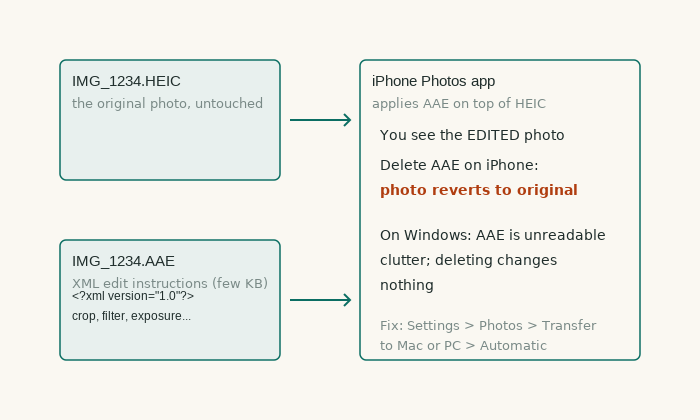
The AAE sidecar holds only edit instructions - the photo itself never changes.
What an AAE file actually is
An AAE file is a sidecar file: a tiny text document that sits next to a photo and holds the editing instructions for that photo. When you crop a picture, apply a filter, or adjust exposure in the Photos app on your iPhone or iPad, iOS does not change the original image file. Instead, it writes a small XML file with the same base name as the photo and an .aae extension.
So IMG_1234.HEIC gets an IMG_1234.AAE beside it. The HEIC file stays exactly as the camera captured it. The AAE file records what you did to it - the crop rectangle, the filter name, the exposure adjustments - as plain-text instructions.
This is called non-destructive editing, and it is the same idea behind RAW photo editing: the original stays pristine, and the edits are applied on top of it every time you view the photo. The AAE file is typically only a few kilobytes, because it contains no pixels at all - just instructions.
If you open an AAE file in a text editor, you will see XML tags like adjustmentBaseVersion, adjustmentData, and adjustmentFormatIdentifier with values describing the edit. The data is Apple's internal format, not meant for humans, but the structure makes it clear what the file is: a recipe, not a picture.
Why your iPhone creates them
Your iPhone creates AAE files because the Photos app is built around non-destructive editing. Every edit you make in Photos - crop, rotate, filter, light, color, markup - is stored as a set of instructions in an AAE file rather than being baked into the image.
This design has real benefits. You can revert any edit at any time and get the original photo back. You can re-edit without accumulating quality loss, because the original is never re-compressed. And Apple can keep the master file small and untouched, which matters for iCloud sync and for storage.
On an iPhone, every edit you make lives in a sidecar, not in the photo itself. Photo by goto_, CC BY 2.0.
The cost of this design is that the edits are not portable. The AAE file only means something to Apple's software. Anywhere else - Windows, Android, most web services - the photo shows up unedited, with a mysterious little AAE file next to it.
This is also why the same photo can look different on different devices: the iPhone applies the AAE instructions when it displays the photo, while a Windows PC shows the raw original. The photo is the same file; the difference is whether the instructions are being read.
What happens when you delete an AAE file
Deleting an AAE file is safe in the sense that it will never delete your photo. The image file itself is untouched. But the consequences depend on where you delete it.
On your iPhone or iPad: the photo immediately reverts to its unedited original. The crop is gone, the filter is gone, the exposure adjustments are gone. The photo is still there - it just looks like it did the moment you took it. This is not recoverable from the photo itself; the edit instructions are gone.
On a Windows PC or Android device: nothing happens to the photo at all, because those systems never applied the edits in the first place. The AAE file is just an unreadable text file to them. Deleting it clears clutter and changes nothing about the JPEG or HEIC next to it.
The practical rule: if you are on the iPhone and you still want the edited look, do not delete the AAE. If you are on a PC and the photo next to the AAE already looks the way you want, deleting the AAE is harmless.
One more scenario worth knowing: if you delete the AAE on the iPhone and later want the edit back, the only recovery path is an iCloud backup or a previous device sync that still holds the file. The edit itself is not stored anywhere else - not in the photo, not in the cloud version of the photo.
Why AAE files appear when you transfer photos to Windows
When you copy photos from an iPhone to a Windows PC with a USB cable, you often see pairs of files: IMG_1234.HEIC and IMG_1234.AAE. The AAE files appear because of how the transfer works.
Your iPhone has a setting that controls this: Settings > Photos > Transfer to Mac or PC. It offers two options:
If you see AAE files on your PC, your iPhone is set to Keep Originals. Windows cannot read the AAE instructions, so it shows you the unedited original photo and the AAE file as an unknown file type.
This is also why the same photos look different on your PC than on your phone: the phone applies the AAE instructions when displaying the photo; Windows cannot.
- Automatic - the iPhone converts photos to a compatible format (JPEG) and bakes the edits into the image during transfer. You get edited photos and no AAE files.
- Keep Originals - the iPhone copies the files exactly as they are stored: the original HEIC or JPEG plus the AAE sidecar with the edit instructions.
How to keep your edits when moving photos off an iPhone
If you want your edited photos to arrive on a PC or anywhere else with the edits baked in, you have three reliable options.
1. Switch the transfer setting to Automatic. In Settings > Photos > Transfer to Mac or PC, choose Automatic. The next wired transfer will convert photos to JPEG and apply the edits, so the files you copy are the finished images. No AAE files, no surprises.
2. Export from the Photos app instead of copying files. When you share or export a photo from the Photos app (AirDrop, email, Save to Files), iOS renders the edits into a normal JPEG or HEIC with them baked in. This is the way to export the edited version instead of the raw original - the AAE never travels, and you can open the resulting HEIC in your browser afterward.
3. Use iCloud.com. With iCloud Photos enabled, sign in at iCloud.com, select the edited photos, and download them. The download is the rendered, edited image - no AAE files.
The one thing to avoid is copying the raw files with Keep Originals enabled and expecting the edits to come along. They cannot; the edits only exist as instructions that only Apple software can read.
If you have already transferred a batch with Keep Originals and the edits are missing on your PC, you do not need to re-transfer everything: switch the setting to Automatic and transfer just the edited photos again, or export them from the Photos app. The originals on the iPhone still hold the AAE files, so the edits are not lost.
Can you open an AAE file?
You can open an AAE file in a text editor - it is plain XML - but there is nothing useful to see for most people. The file contains Apple's internal edit instructions: adjustment types, values, and version markers. It is not an image, and no Windows or Android program will apply it to a photo.
If you are curious, rename the file to .txt and open it in Notepad. You will see XML tags describing the edits. That is all the file is.
There is no practical reason to open AAE files, and there is no AAE viewer worth using, because there is nothing to view. The file is a few kilobytes of instructions. The photo next to it is what matters.
If you are a developer or a curious user, the one genuinely useful thing in an AAE file is the edit history it implies: the file records that a photo was edited, and roughly when. For photo forensics - proving whether an image was modified - the presence of an AAE file is evidence that an edit happened, even if the instructions themselves are opaque. For everyone else, the file is simply safe to ignore or delete.
FAQ
Can I delete AAE files?
Yes, deleting an AAE file never deletes your photo. But on the iPhone, deleting the AAE reverts that photo to its unedited original. On a Windows PC, deleting the AAE changes nothing because the edits were never applied there.
Will deleting AAE files change my photos?
On the iPhone, yes - the photo reverts to the unedited original, and the edit is gone permanently. On a PC, no - the photo next to the AAE was already unedited, so nothing changes.
Why do AAE files appear on Windows but not on my iPhone?
On the iPhone, the Photos app hides sidecar files and applies the edits automatically. When you transfer with "Keep Originals" enabled, the raw files - including the AAE - are copied to the PC, where Windows shows them as unknown files.
How do I transfer edited photos without AAE files?
Set Settings > Photos > Transfer to Mac or PC to Automatic, or export the photos from the Photos app (AirDrop, email, Save to Files), or download them from iCloud.com. All three render the edits into the image itself.
Can I open an AAE file to see the edits?
You can open it in a text editor - it is XML - but you will only see edit instructions, not a picture. No Windows or Android program can apply the edits to the photo.
Do AAE files take up much space?
No. An AAE file is a few kilobytes of text. Even hundreds of them are negligible. They are clutter, not a storage problem.
Need to view HEIC photos in your browser? Open the HEIC viewer - no signup, no install, processed entirely on your device.